# Image SEO for E-commerce


> **Update, July 2026:** I checked this advice again seven years later. Read [Image SEO in 2026: what changed since 2019](/posts/image-seo-2026/) for the current version.

<div class="full-image__container"><div class="full-image__content">
<img src="https://sirv-cdn.sirv.com/blog/image%20seo/2456071.png" alt="Illustration for image seo for e-commerce article." />
</div>
</div>

### The original article was posted on [Sirv's blog](https://sirv.com/blog/image-seo-for-ecommerce/)
<p>Have these questions ever crossed your mind?</p>
<ul>
<li>What is image SEO?</li>
<li>How can I rank product images in Google Image search?</li>
<li>What is the best image format for product photos?</li>
<li>What's the difference between <em>alt</em> and <em>title</em> (and are they really necessary)?</li>
<li>How do you make images (and the entire website) load faster?</li>
<li>How can I use structured data to gain more traffic?</li>
<li>What effects will a CDN have on my image SEO?</li>
</ul>

<p>This guide answers each question with examples from e-commerce sites.</p>

<h2 id="what">What is image SEO?</h2>

<p>Image SEO is the process of optimizing your images to rank them better in search engines. It involves reducing image size while retaining acceptable quality (to increase page speed), as well as adding additional markup to increase your image visibility in search engines.</p>

<h4>Why is image SEO important?</h4>

<div class="wp-caption aligncenter">
    <div class="Sirv">
        <div data-src="https://sirv-cdn.sirv.com/blog/image%20seo/jumpshot-search-over-time-large.gif?format=png" data-type="zoom"></div>
    </div>
        <p class="wp-caption-text"><a href="https://sirv-cdn.sirv.com/blog/image%20seo/jumpshot-search-over-time-large.gif?format=png" target="_blank" rel="noopener noreferrer">Click for a larger image</a>. Data from JumpShot.</p>
</div>

<p>In the 2019 data below, Google Images had substantial search volume.</p>

<div class="protip">
<p>Google Images holds <strong>second place</strong> in terms of search volume in the USA.</p>
It's 5 times bigger than YouTube, 10 times bigger than Yahoo/Bing/Amazon and 15 times larger than Facebook.
</div>

<p>It received less SEO attention because many people considered its traffic difficult to convert.</p>

<p>This is what Google Image search result looks like on a laptop computer today:</p>

<div class="full-image__container" style="margin:20px auto;">
<div class="full-image__content" style="background:#e8e8e8;">
    <div class="Sirv">
<div data-src="https://sirv.sirv.com/blog/image%20seo/google-image-search-on-laptop.png" data-type="zoom"></div>
</div>
</div>
</div>

<p>The interface gives users a dedicated button to visit the website, as well as actions to share, bookmark, or collect an image.</p>
<p><strong>Update 12.09.2019</strong> - All the rich meta data like reviews, product price, brand etc. is now clearly visible on desktop too (this wasn't the case back when I first wrote the article).
</p>

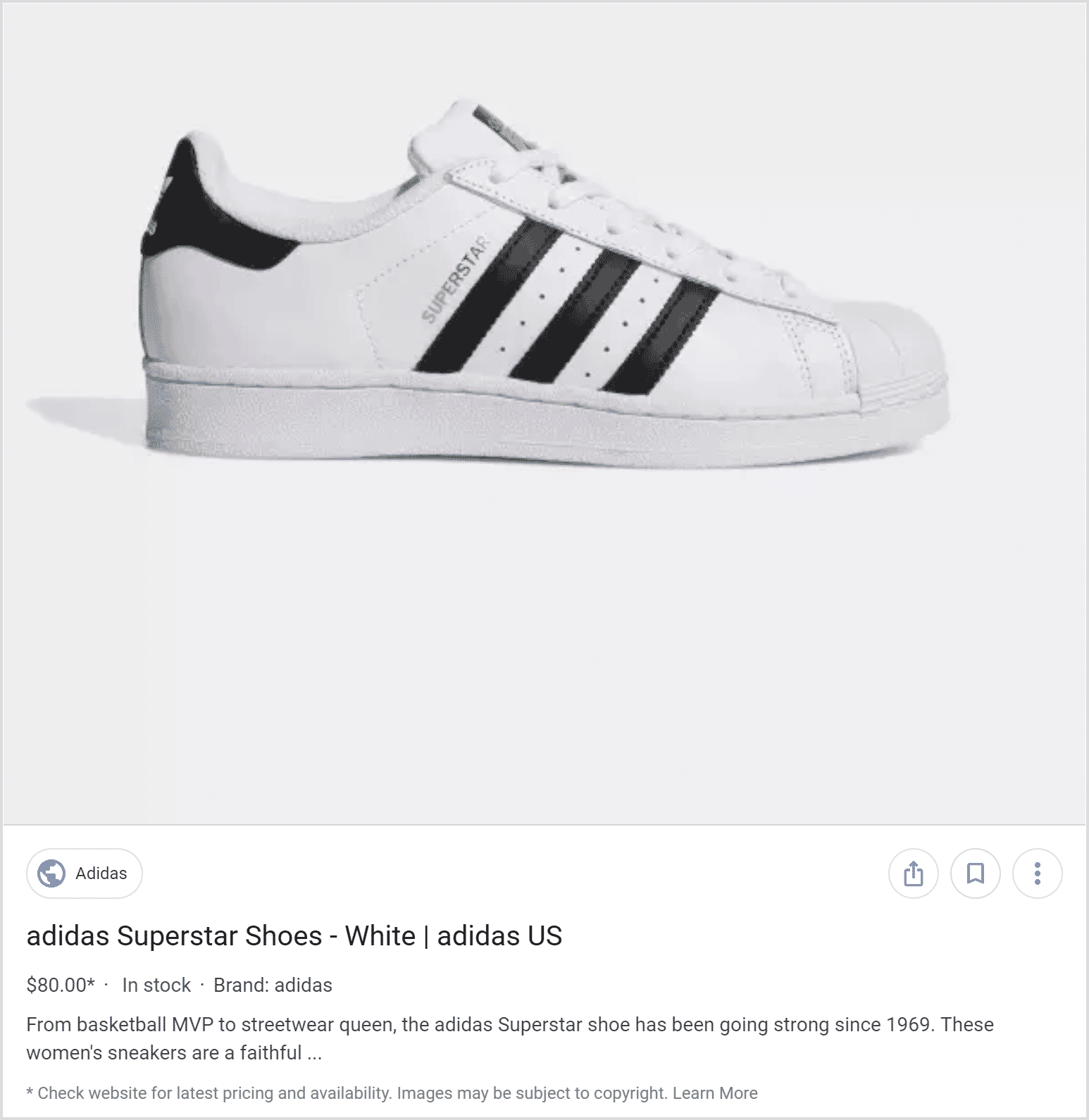
<p>Now here's how image search results look on mobile devices:</p>

<div class="Sirv" data-type="zoom" data-options="zoom-on-wheel:false" style="max-width:740px;margin:20px auto;">
    <div data-src="https://sirv-cdn.sirv.com/blog/image%20seo/Screen%20Shot%202019-05-17%20at%2014.01.22-iPad%20Air%202.png" ></div>
</div>
<!-- <img class="Sirv" data-src="https://sirv-cdn.sirv.com/blog/image%20seo/Screen%20Shot%202019-05-17%20at%2014.01.22-iPad%20Air%202(1).png" alt="google images mobile search result page of an adidas shoe"> -->

<p>The mobile interface is designed for browsing products. Google displays a large image and uses <a href="#structured-data">structured data markup</a> to show price, brand, stock status, and other product details.</p>

<p>Another important difference between mobile and desktop image results is the "related images" on the mobile version. Even if your product images don't make it to the top of the image search result page, they can still be shown in the related block, driving more traffic to your website.</p>

<p>Google Image Search can send useful e-commerce traffic. Visual search adds another way for people to find products:</p>

<div class="wp-caption aligncenter">
    <img class="Sirv" data-src="https://sirv-cdn.sirv.com/blog/image%20seo/Google-Lens.gif" alt="demonstration of Google Lens recognizing furniture" data-options="threshold:600"/>
        <p class="wp-caption-text">An example of visual search in Google Images. <a href="https://www.blog.google/products/search/learn-and-do-more-lens-google-images/">Image by Google</a>
</div>

<p><span style="text-decoration:underline dotted;" data-avia-tooltip="Searching with an image when words are difficult. (c) Purna Virji">Visual search</span> was already handling <a href="https://newsroom.pinterest.com/en/post/celebrating-one-year-of-pinterest-lens">hundreds of millions of searches</a> on Pinterest when this article was written. Google Lens brought the same interaction into Google Images.</p>

<p>Visual search uses machine learning to identify the image and combine it with information from the page.</p>

<h3>How does Google Image Search work?</h3>

<p>Google Cloud Vision is the core technology behind Google Image Search.</p>

<p>Like all other image recognition platforms, it's based on Artificial Intelligence and Machine Learning, but Google has the added capability to extract and analyze information from:</p>

<ul>
<li>The page where the image was found;</li>
<li>Other websites using the same or similar images;</li>
<li>Image SEO data (structured markup, file names, image <i>alt</i> attributes, etc.).</li>
</ul>

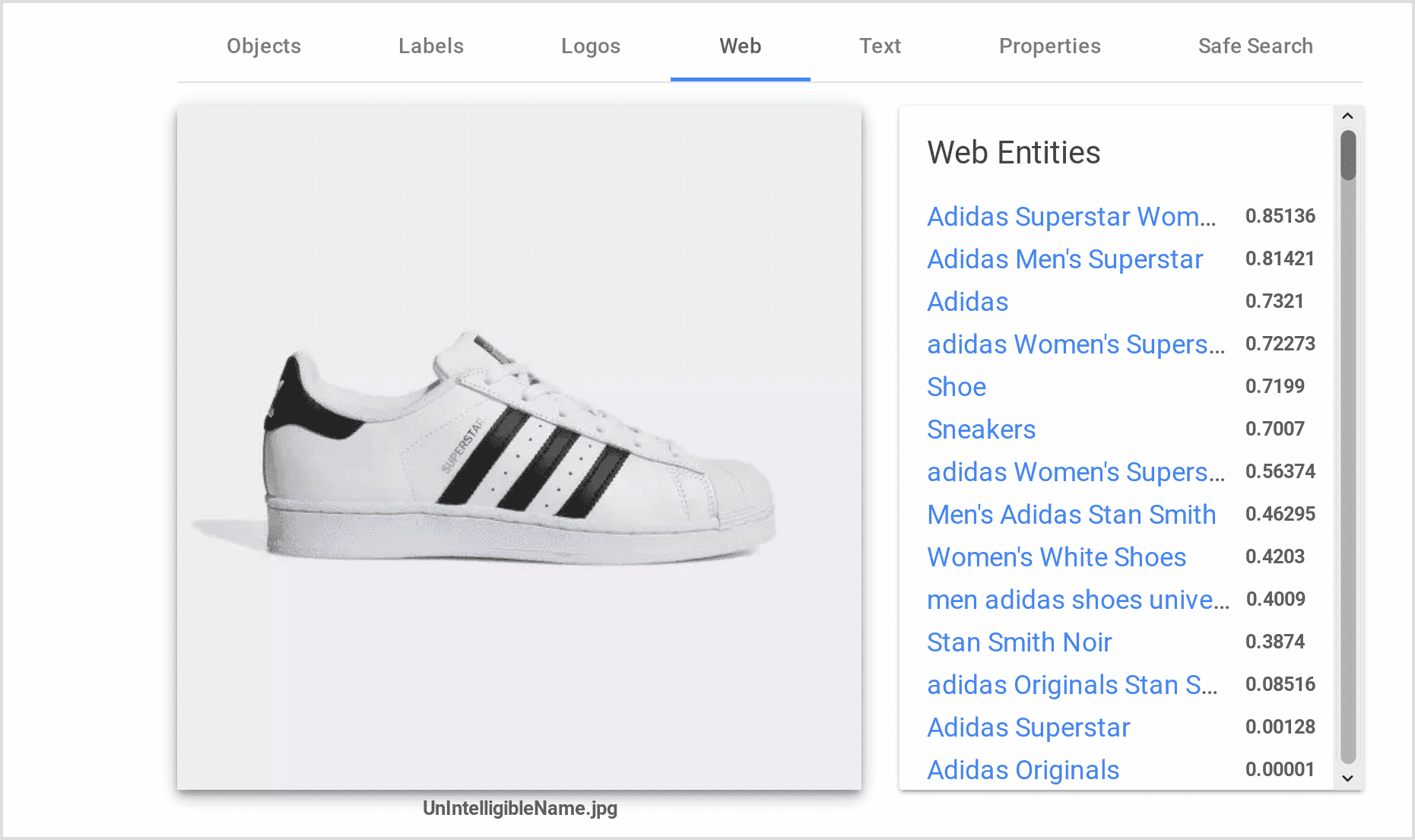
<p>Below is an example of what Cloud Vision concludes, by analyzing web entities (websites that use the same or similar images). You can <a href="https://cloud.google.com/vision/#vision-api-demo" target="_blank" rel="noopener noreferrer">try Cloud Vision yourself</a>.</p>

<img class="Sirv" data-src="https://sirv-cdn.sirv.com/blog/image%20seo/Cloud-Vision-Adidas-Shoe-HQ.png?profile=screenshots-grey-border" alt="Adidas shoe completely recognized by Cloud Vision AI">

<p>It identified the shoe as an Adidas Superstar sneaker for women.</p>

<p>Context is also a major ranking factor.</p>

<blockquote>
<p>We now prioritize sites where the image is central to the page, and higher up on the page. So if you’re looking to buy a specific pair of shoes, a product page dedicated to that pair of shoes will be prioritized above, say, a category page showing a range of shoe styles.</p>
<p>Source -  <a href="https://www.blog.google/products/search/making-visual-content-more-useful-search/">Google blog</a></p>
</blockquote>

<h3>How to check your Google Image traffic</h3>

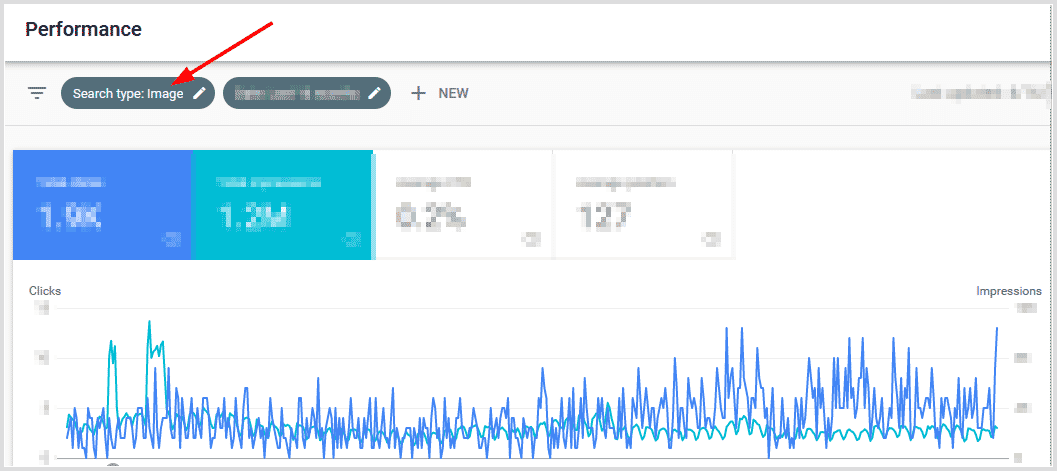
<p>Check current Google Image traffic before changing anything, so you have a baseline.</p>

<p>Go to <a href="https://search.google.com/search-console/about" target="_blank" rel="noopener noreferrer">Google Search Console</a>, open the performance report and switch the "Search Type" from "Search" to "Image".</p>

<img class="Sirv" data-src="https://sirv-cdn.sirv.com/blog/image%20seo/Image-Search.png?profile=screenshots-grey-border" alt="google search console - image search report"/>

<p>If you'd like to go deeper than that, you can analyze user behavior in Google Analytics, go to Aquisition -> All Traffic -> Source/Medium and look for <span class="gray-bg">google images / organic</span>. If you're not familiar with Google Analytics and would like a more detailed walkthrough, read <a href="https://yoast.com/image-search-google-analytics/" target="_blank" rel="noopener noreferrer">this post</a> from Yoast.</p>

<h2 id="accessibility">Make sure your images are accessible to search engines</h2>

<p>Google has to fetch an image before it can index it. Start by checking crawl access and broken URLs.</p>

<h3>Check for broken image links and images blocked by robots.txt</h3>

<p>An obvious place to look for broken links is the coverage report in Google Search Console.</p>

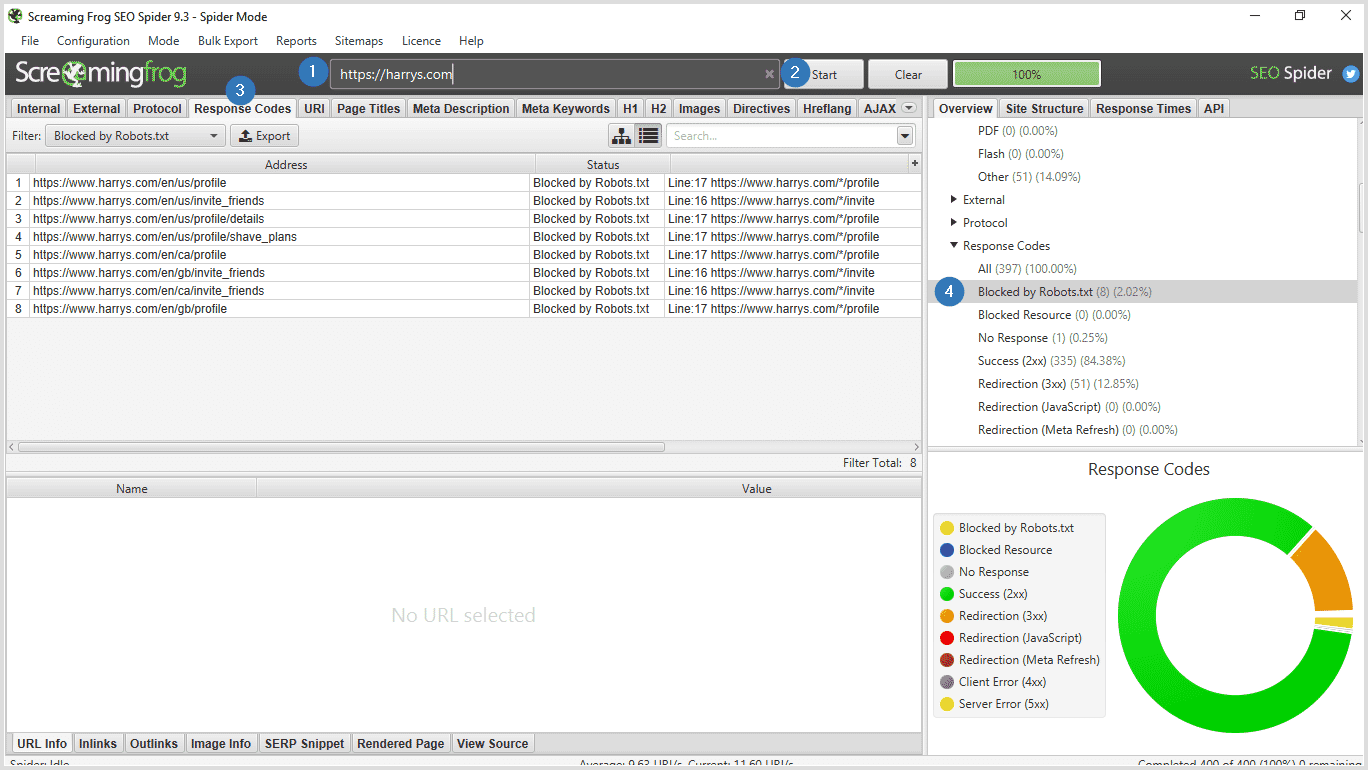
<p>If your website does not happen to be in Google Search Console, you'll need special software. <a href="https://www.screamingfrog.co.uk/seo-spider/" target="_blank" rel="noopener noreferrer">Screaming Frog SEO Spider</a> is a really good one, and I'll be using it as an example below. It's free to scan websites with fewer than 500 pages.</p>

<p>Now let's check if your images are easily accessible by search engines...</p>

<h4>Check for pages blocked in robots.txt</h4>

<p><img class="Sirv" data-src="https://sirv-cdn.sirv.com/blog/image%20seo/Check%20Blocked%20By%20Robots.png?profile=screenshots-grey-border" alt="How to check for content blocked in Robots.txt using Screaming Frog SEO Spider"/></p>

<ol>
<li>Open Screaming Frog SEO Spider.</li>
<li>Enter your website URL.</li>
<li>Click "Start".</li>
<li>After the scan has finished, click the "Response Codes" tab.</li>
<li>Click on "Blocked by Robots.txt" on the right-hand panel.</li>
</ol>

<p>You'll be presented with a list of pages that are blocked in robots.txt. Ask your developer/SEO to fix this situation or do it yourself. Robots.txt is located in your website's root folder.</p>

<h4>Check for broken image links</h4>

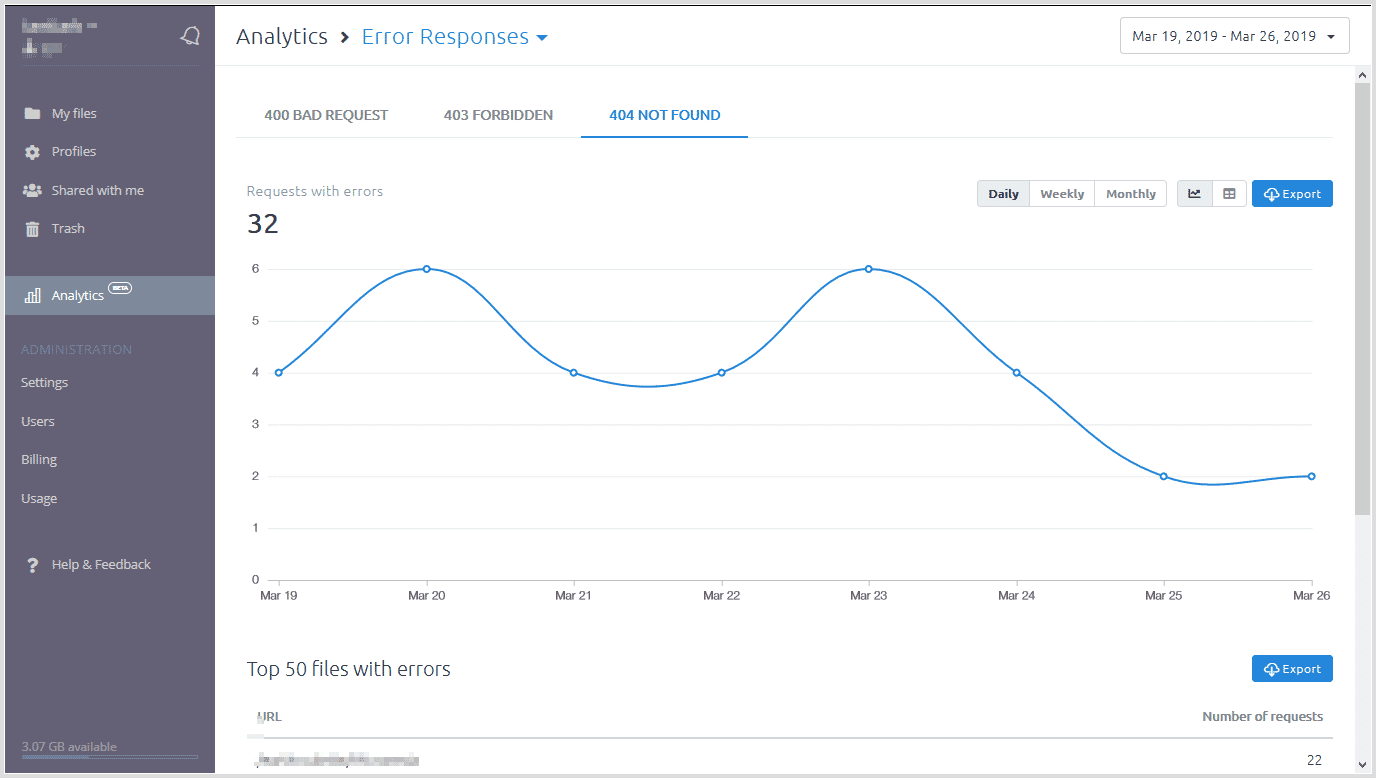
<p><img class="Sirv" data-src="https://sirv-cdn.sirv.com/blog/image%20seo/Sirv-Error-Responses.png?profile=screenshots-grey-border" alt="screenshot of Sirv Analytics showing broken image links" /></p>

<p>If you use Sirv, you can instantly spot broken image links in the <a href="https://my.sirv.com/#/stats/error-responses" target="_blank" rel="noopener noreferrer">Analytics section</a> of your Sirv account. You can see what the image URL was and where it was requested from (referrer).</p>

<p>Alternatively, you can use Screaming Frog again. Choose results with status code "Client error (4xx)". Alternatively, you can use <a href="http://home.snafu.de/tilman/xenulink.html#Download" target="_blank" rel="noopener noreferrer">Xenu's Link Sleuth</a>, it's a completely free broken link checker.</p>

<h3>Create an image sitemap</h3>

<p>Image sitemaps make it easier for Google to find and index your images.</p>

<p>You can either create a separate sitemap for your images or include image information in your existing sitemap.</p>

<p>Please refer to this <a href="https://support.google.com/webmasters/answer/178636" target="_blank" rel="noopener noreferrer">image sitemap guide</a> by Google for a more detailed explanation.</p>

<h4>How to implement image sitemaps</h4>
<ul>
    <li>WooCommerce: <a href="https://wordpress.org/plugins/wordpress-seo/">Yoast SEO</a> will add images to your sitemap automatically.</li>
    <li>Shopify: try the <a href="https://apps.shopify.com/image-sitemap">Image Sitemap app</a>.</li>
    <li>Magento: <a href="https://marketplace.magento.com/mageworx-seosuiteultimate.html">Mageworx Seo Ultimate</a> is a solid extension.</li>
</ul>

<h2 id="rank">Image SEO: How to rank your product images in Google Image Search</h2>

<p>One of the most important factors for ranking your images is how well your product and category pages rank in regular Google Search. It's nearly impossible to appear in image search if your online store is ranking poorly.</p>

<p>It's therefore important to get your on-page SEO and <abbr title="User Experience">UX</abbr> right. This includes your meta tags, text, titles, your product image size, quality and loading speed.</p>

<p>In this part, I'll touch only the classic Image SEO parts. Image optimization and UX are covered in the <a href="#optimize">next section</a>.</p>

<h3>Title, description and on-page content</h3>

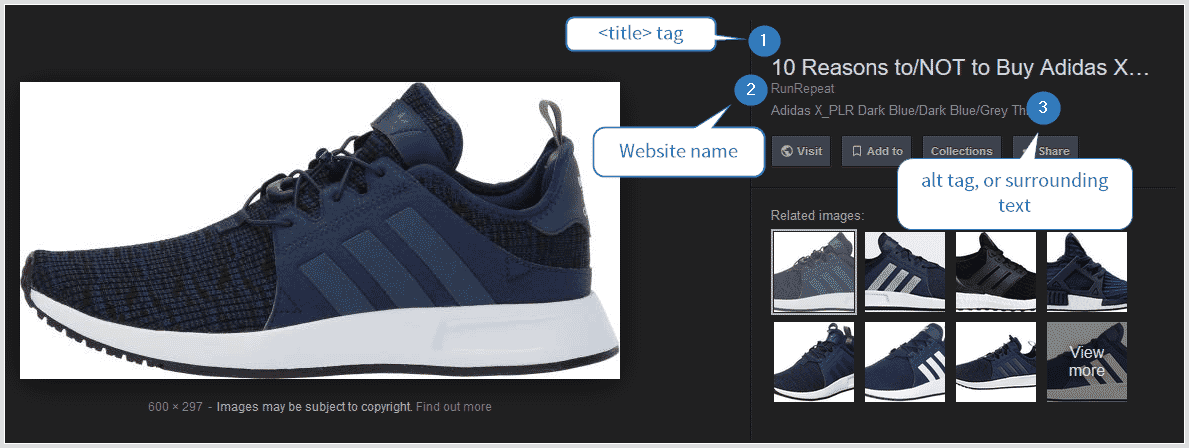
<p>To provide more context to its image search results, Google pulls information from your website.</p>

<img class="Sirv" data-src="https://sirv-cdn.sirv.com/blog/image%20seo/Adidas-shoe-google-image-serp-page.png?profile=screenshots-grey-border" alt="Screenshot showcasing Google's usage of structured markup"/>

<ol>
<li>The image title is taken from the page's meta title tag (not to be confused with the image's "title" attribute, which has no use).</li>
<li>Your website name.</li>
<li>The description is taken from either the image alt text, the surrounding content, your meta description tag or it can be absent completely. Google decides whether or not to show this snippet, based on its likelihood of adding value to the search result and increasing its <abbr title="Click Through Rate">CTR</abbr>.</li>
</ol>

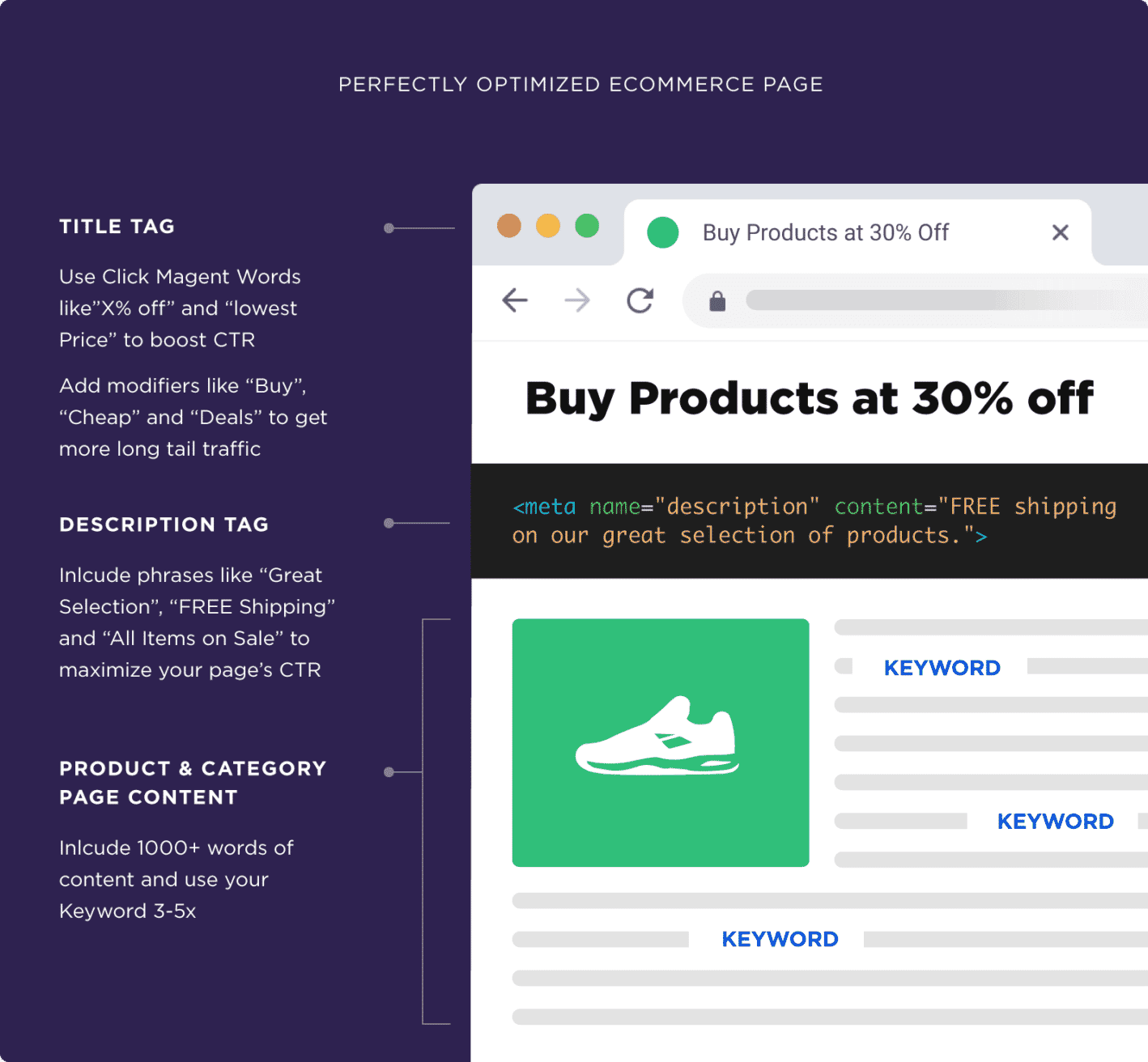
<p>If you're doing SEO for your e-commerce website, the chances of you ignoring your title tag are quite low. There is no image specific advice, just follow <a href="https://support.google.com/webmasters/answer/35624" target="_blank" rel="noopener noreferrer">Google's guidelines</a> and you'll do just fine.</p>

<div class="wp-caption aligncenter">
    <img class="Sirv" data-src="https://sirv-cdn.sirv.com/blog/image%20seo/perfectly-optimized-ecommerce-page.png" alt="an infographic about the anatomy of a perfect e-commerce page"/>
            <p class="wp-caption-text">The anatomy of a perfect e-commerce page by Bryan Dean.</p>
    </div>

<p>On-page content, such as the product description, matters in both regular and image <span style="text-decoration:underline dotted;" data-avia-tooltip="Search engine result pages">search results</span>. Bryan Dean's <a href="https://backlinko.com/ecommerce-seo" target="_blank" rel="noopener noreferrer">e-commerce SEO guide</a> covers the wider page.</p>

<h3>How to name images for better SEO</h3>

<p>Use descriptive file names. <span class="gray-bg">adidas-superstar-white-shoe.jpg</span> says more than <span class="gray-bg">DSC001.jpg</span>. Separate words with hyphens, not underscores.</p>

<p>File name is a super minor ranking factor though, if you have thousands of images and don't have an easy way of renaming and referencing them - don't bother, it's not worth it.</p>

<h3>The <i>alt</i> text</h3>

<img class="Sirv" data-src="https://sirv-cdn.sirv.com/blog/image%20seo/alt-tag.png" alt="alt tag illustration"/>
<p>The <i>alt</i> image attribute, commonly referred to as the "alt tag" or "alt text", was created to make the web a more accessible place. </p>

<ol>
<li>Visually impaired people browse the web with the help of screen reader software. Screen reader software uses alt text to announce what the image is about. Ever wondered what it's like to browse the web as a visually impaired person? Read <a href="https://axesslab.com/alt-texts/" target="_blank" rel="noopener noreferrer">this</a>.</li>
<li>The content of your image <i>alt</i> text is what's shown before the image is rendered. It's really useful for people with slow or unstable connections.</li>
<li>It's used by Google in a similar way to anchor text if you happen to use your image as a link.</li>
</ol>

<p>Good <i>alt</i> text follows a few rules:</p>

<ul>
<li>Don't keyword stuff;</li>
<li>Be descriptive;</li>
<li>Be detailed;</li>
<li>Keep the text fewer than 125 characters.</li>
</ul>

<p>Examples:</p>

<h5>Bad (missing alt text):</h5>

```html
<img src="shoe.jpg" alt="" />
```
<h5>Bad (keyword stuffing):</h5>

```html
<img src="shoe.jpg" alt="adidas shoe for sale adidas shoes for sale adidas shoes for men adidas shoes - originals sale"/>
```
<h5>Better:</h5>

```html
<img src="shoe.jpg" alt="Adidas shoe"/>
```
<h5>Best:</h5>

```html
<img src="adidas-shoe.jpg" alt="White Men's Adidas Superstar Shoe"/>
```
<p>If you're interested in a more in-depth guide to alt text writing intricacies, I recommend reading this <a href="https://blog.hubspot.com/marketing/image-alt-text" target="_blank" rel="noopener noreferrer">nice article</a> by Hubspot.</p>


<h3 id="structured-data">Structured data is a must</h3>

<p>Mobile Google Image Search looks gorgeous for e-commerce. For example:</p>

<img class="Sirv" data-src="https://sirv-cdn.sirv.com/blog/image%20seo/Product_schema_example.png?profile=screenshots-grey-border" alt="google images mobile search result"/>

<p>The product information is pulled from structured data on the page where Google found the image.</p>

<div class="protip"><strong>What is structured data?</strong>
Structured data is a special type of mark-up, which provides key information about your product.
</div>

<p>Here's what info Google can use in Google Image Search results:</p>

<ul>
<li>Product image(s)</li>
<li>Price</li>
<li>Description</li>
<li>Availability</li>
<li>Brand</li>
<li>Rating</li>
</ul>

<p>Google has a decent <a href="https://developers.google.com/search/docs/data-types/product" target="_blank" rel="noopener noreferrer">guide to product structured data</a>.</p>

<p>Some tips:</p>

<ul>
<li>Use <a href="https://schema.org/Product" target="_blank" rel="noopener noreferrer">Schema.org/Product</a> in JSON-LD format. It's <a href="https://developers.google.com/search/docs/guides/intro-structured-data#markup-formats-and-placement" target="_blank" rel="noopener noreferrer">recommended by Google</a>, it's clean and easy to maintain.</li>
<li>Use either JPEG or PNG images in your structured markup, since Google does not state WebP support for the product markup image object yet.</li>
<li>The recommended aspect ratios are 16x9, 4x3 and 1x1.</li>
<li>Image size must be at least 50,000 pixels (height*width). To put it simply, 250px * 200px is the bare minimum. It's better to use much bigger images than that, at least 1000px*1000px.</li>
<li>You can use CDN image URLs in your product structured markup.</li>
</ul>

<p>The cool thing about structured product data is that it's also used by <a href="https://support.google.com/merchants/answer/6069143" target="_blank" rel="noopener noreferrer">Google's Merchant Center</a>, <a href="https://www.facebook.com/business/help/1175004275966513" target="_blank" rel="noopener noreferrer">Facebook</a> and <a href="https://developers.pinterest.com/docs/rich-pins/products/" target="_blank" rel="noopener noreferrer">Pinterest</a> (it supports JSON-LD, though it's not documented).</p>

<p>It's highly likely that all e-commerce platforms will support structured product data either now or in the future. It'll boost your rankings today and it will generate even more traffic in the future.</p>

<p>The next section covers image delivery and performance.</p>

<h2 id="optimize">Image Optimization</h2>
<strong>Speed up your store (without sacrificing image quality)</strong>
<div class="wp-caption aligncenter">
<img class="Sirv" data-src="https://sirv-cdn.sirv.com/blog/image%20seo/professor.gif" alt="gif of a professor from Simpsons teaching a class about the universe" data-options="threshold:400"/>
    <p class="wp-caption-text">Image optimization might sound complicated, but it doesn't have to be.</p>
</div>

<p>For most online stores, it's impossible to sell anything without images. In fact, images are responsible for 55-65% of the total transfer size on all websites (the median size of images is 1600 KB for Magento stores, according to <a href="https://httparchive.org/reports/page-weight?lens=magento#bytesImg" target="_blank" rel="noopener noreferrer">HTTP Archive</a>).</p>

<p>Loading speed is a ranking factor. Poor UX due to a slow website will hurt your sales. Low-quality product images can make your website faster, but it'll have a negative impact on your conversions and will negatively affect your image ranking in image search. This is due to how image recognition algorithms work, high-quality images have less noise (compression artifacts), which make it easier for ML algorithms to correctly identify objects in images.</p>

<p>You have to hit the sweet spot between image quality and loading speed to succeed. Thankfully, it's possible and not even hard.</p>

<p>Here are 7 tips to make your images load fast and look amazing.</p>

<h3>Image quality - find the perfect balance</h3>
<div class="wp-caption aligncenter">
    <img class="Sirv" data-src="https://sirv-cdn.sirv.com/blog/image%20seo/tennis-ball.gif" alt="a supposedly funny gif of a machine squishing a baseball" data-options="threshold:400"/>
</div>

Big, high-quality product images <a href="https://chameleoncollective.com/improve-amazon-images-increase-sales/" target="_blank" rel="noopener noreferrer">increase sales</a>. Image recognition success is also highly reliant on the source image quality.

But high-quality comes at a price. Pages on e-commerce stores typically have a lot of product images, your website loading speed will suffer if you go wild with your image quality. You must find a happy balance between good quality and small file size.

At Sirv, we've spent hundreds of hours defining perfect image compression settings (typically 80% quality for JPEG and WebP, with PNG optimization enabled) to achieve the perfect balance between image quality and file size. All images served by Sirv are automatically optimized.  We also believe in giving you control, so you can easily tweak your default settings (<a href="https://sirv.com/help/knowledgebase/faster-image-loading/" target="_blank" rel="noopener noreferrer">learn more here</a>).

<h3>Use modern image formats</h3>

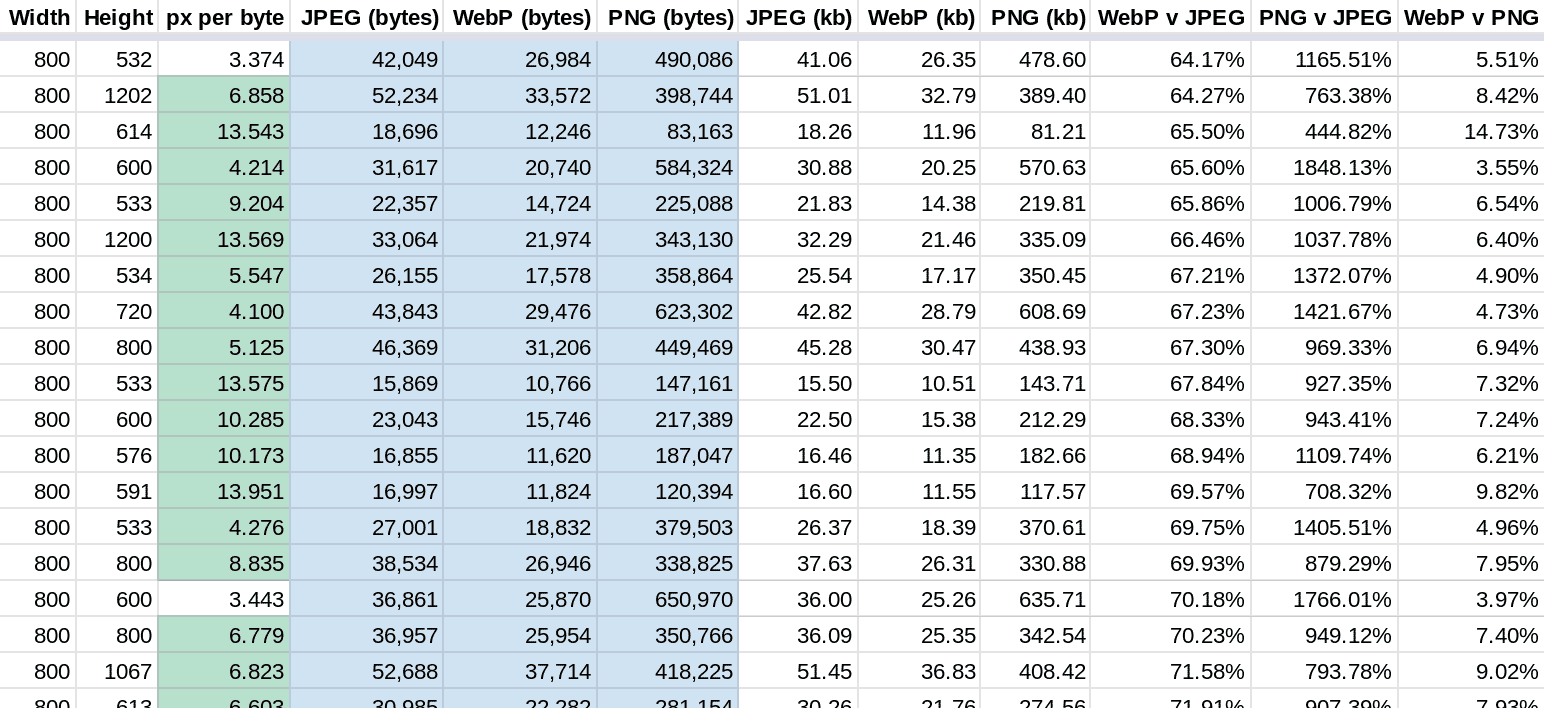
<img class="Sirv" data-src="https://sirv-cdn.sirv.com/blog/image%20seo/image-format-comparison.png" alt="image format compression comparison"/>

The three most popular image formats on the web can hardly be called <i>modern</i>.
<ul>
<li>JPEG was released in 1992.</li>
<li>PNG emerged in 1996.</li>
<li>GIF is 1 year younger than yours truly, created in 1989.</li>
</ul>
<p>There are some that are worthy of the "next-gen" title though: WebP, JPEG XR and JPEG 2000 are all wildly superior to the previous generation of image formats. They're doing a much better job at both lossy and lossless image compression.</p>

<div class="protip"><strong>Info</strong>
<p>Images in WebP format are usually 26% smaller than PNG and 25-34% smaller than JPEG.</p>
</div>

<p>You might ask, - if they're so superior, why aren't they used more widely?</p>

<p>Two words - browser support. This is why old formats like GIF are still around, because every web browser and every operating system support them.</p>

<p>Here are the browser support stats for each of the modern formats:</p>

<ul>
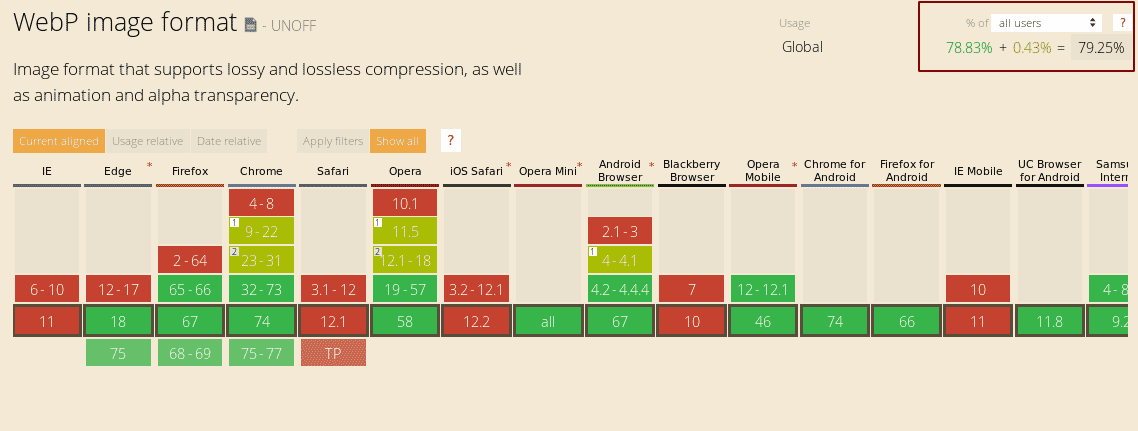
<li><a href="https://caniuse.com/#feat=webp" target="_blank" rel="noopener noreferrer">WebP (~80%)</a></li>
<li><a href="https://caniuse.com/#feat=jpeg2000" target="_blank" rel="noopener noreferrer">JPEG 2000 (13.65%)</a></li>
<li><a href="https://caniuse.com/#feat=jpegxr" target="_blank" rel="noopener noreferrer">JPEG XR (4.87%)</a></li>
</ul>

<img class="Sirv" data-src="https://sirv.sirv.com/blog/WebP%20Article/WebP-Browser-Share.png" alt="WebP browser support"/>
WebP browser support

<p>WebP is the clear winner here with ~80% browser support. All the major players - Google (they created WebP), Mozilla and Microsoft all support WebP. Smaller browsers like Opera, Vivaldi and Brave are all using the rendering engine that powers Chrome, making them support WebP by default. It's currently unclear whether the last remaining player in the browser market - Apple - jumps on the WebP bandwagon or not.</p>

<p>This shouldn't stop you from using WebP as your main image format for your product images. You can easily serve WebP to supported browsers and a dinosaur era format to Safari.</p>

<h4>How to start using next-gen image formats (WebP) today</h4>

<p>Use Sirv. It'll automatically serve your product images in the <a href="https://sirv.com/blog/optimal-image-format/">perfect image format</a>.</p>

<p>It's super easy to integrate with your store, plus there are plugins for:</p>

<ul>
<li><a target="_blank" href="https://sirv.com/integration/woocommerce/" rel="noopener noreferrer">WooCommerce</a></li>
<li><a target="_blank" href="https://sirv.com/integration/magento/" rel="noopener noreferrer">Magento 1 and 2</a></li>
<li><a target="_blank" href="https://sirv.com/integration/prestashop/" rel="noopener noreferrer">Prestashop</a></li>
<li><a target="_blank" href="https://sirv.com/integration/salesforce-commerce-cloud/" rel="noopener noreferrer">Salesforce Commerce Cloud</a></li>
</ul>


<h3>Serve properly scaled images</h3>

<p>A very common mistake with a really high impact on page loading time.</p>

<p>Let's look at this page, for example. The max width for the content container is 740 pixels. Which means any image in this post that is wider than 740 pixels would be downloaded and then rescaled to 740px width... by the browser.</p>

<img class="Sirv" data-src="https://sirv-cdn.sirv.com/blog/image%20seo/image-scaling-is-bad.png" alt="an example of an image scaled by the browser"/>

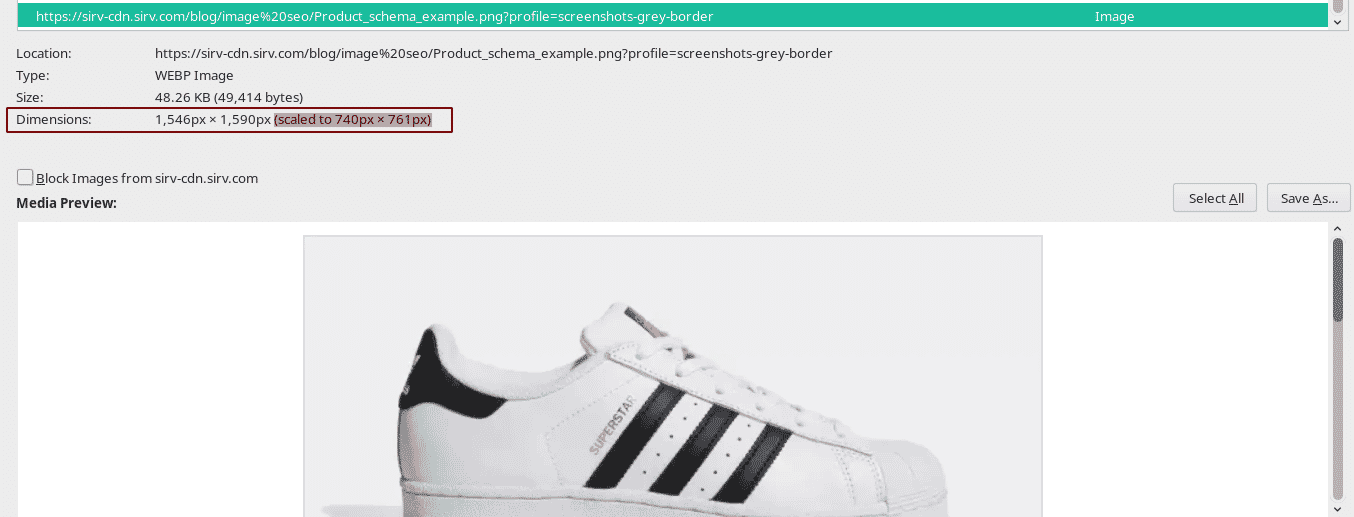
<p>The browser automatically scales the image to fit the container. To say that this is not optimal for performance would be an understatement. To demonstrate, let's take a look at the original unoptimized PNG image and an optimized image with optimal quality, proper scaling and a modern image format:</p>
<div style="overflow-x:auto;">
<table>
    <tr>
        <th><br>Image format</th>
        <th>PNG</th>
        <th>Scaled PNG</th>
        <th>WebP</th>
        <th>Scaled WebP</th>
    </tr>
    <tr>
        <td>File Size</td>
        <td><a target="_blank" href="https://sirv-cdn.sirv.com/blog/image%20seo/Product_schema_example.png?format=png" rel="noopener noreferrer">354.8 KB</a></td>
        <td><a target="_blank" href="https://sirv-cdn.sirv.com/blog/image%20seo/Product_schema_example.png?format=png&w=740" rel="noopener noreferrer">157.0 KB</a></td>
        <td><a target="_blank" href="https://sirv-cdn.sirv.com/blog/image%20seo/Product_schema_example.png?profile=screenshots-grey-border" rel="noopener noreferrer">48.3 KB</a></td>
        <td><a target="_blank" href="https://sirv-cdn.sirv.com/blog/image%20seo/Product_schema_example.png?profile=screenshots-grey-border&w=740" rel="noopener noreferrer">21.0 KB</a></td>
    </tr>
    </table>
    </div>
<p>The difference is massive.</p>

<h4>Solving the responsive image problem</h4>

<p>The previous example illustrated the massive implications bad image scaling could have on a regular, desktop computer experience. But we live in a responsive era, where mobile devices account for ~60% of traffic. The proper scaling problem becomes even harder to solve.</p>

<p>Mobile devices come in different shapes and sizes, some with HIDPI displays with pixel density as high as 3x (ultra retina displays). This means we have to serve individually scaled images to each and every device to achieve the best performance.</p>

<p>The old-school solution would be to use the <a href="https://developer.mozilla.org/en-US/docs/Learn/HTML/Multimedia_and_embedding/Responsive_images" target="_blank" rel="noopener noreferrer">SRCSET</a> tag. This means you have to:</p>
<ul>
  <li>Generate images in different sizes.</li>
  <li>Include all of them in your SRCSET tag.</li>
</ul>

<p>The markup looks something like this:</p>

```html
<img srcset="elva-fairy-320w.jpg,
        elva-fairy-480w.jpg 1.5x,
        elva-fairy-640w.jpg 2x"
     src="elva-fairy-640w.jpg"
     alt="Elva dressed as a fairy">
```

<p>This is quite cumbersome, to say the least.</p>

<p>Sirv offers a much more elegant solution. This is how I serve responsive, automatically scaled images in this blog post:</p>

```html
<img class="Sirv"
     data-src="https://sirv-cdn.sirv.com/blog/image%20seo/Product_schema_example.png?profile=screenshots-grey-border"
     alt="Google Images search result, showcasing the richness of product schema">
```

<p>I use markup like this for every image in this post.</p>

<p>Sirv.js handles the detection and transformation:</p>

<pre class="prettyprint">&lt;script src="https://scripts.sirv.com/sirv.js"&gt;&lt;/script&gt;</pre>

The script detects the browser and viewport, resizes the image, chooses a suitable format and quality, and enables lazy loading.

<h3>Lazy load images</h3>

<div class="wp-caption aligncenter">
<video autoplay loop muted="" style="max-width:100%;">
<source src="https://sirv-cdn.sirv.com/blog/image%20seo/lazy-lazy-loading.mp4"><p class="warning">Your browser does not support HTML5 video.</p></video><p class="wp-caption-text">Lazy loading in action</p>
</div>

<p>Lazy loading is a technique where only above-the-fold images are loaded, while those out of sight are loaded on-demand. This can dramatically improve your page loading speed.</p>

<p>For example, on our <a href="https://sirv.com/demos/lazy-loading/">lazy loading demo page</a>, we have 26 images, but only the first one is initially loaded.</p>

<p>HTTP Archive has some <a href="https://httparchive.org/reports/state-of-images?lens=magento&start=2016_02_15&end=latest&view=list#offscreenImages" target="_blank" rel="noopener noreferrer">interesting data</a>: Magento store owners could speed up their image loading speed by 66% if they were to use lazy loading.</p>

<h4>How to lazy load images</h4>

Lazy loading is on by default when you use Sirv's <a href="https://sirv.com/help/resources/responsive-imaging/#Lazy_loading">responsive imaging</a>. You can also configure the threshold (load images when they're 200 pixels below the viewport, for example).

<h3>Use a Content Delivery Network (CDN)</h3>

<p>Most websites serve their images from a single server, located in a single location.

<img class="Sirv" data-src="https://sirv-cdn.sirv.com/blog/image%20seo/DoneJS-Animated-No-CDN.gif" alt="a gif demonstrating of how files travel without a CDN" data-options="threshold:400"/>

<p>If you're operating on a small country level - it's fine. The thing is - the further your visitors are from your origin server - the slower your website will load.</p>

<p>Content Delivery Networks (CDNs) solve this problem by replicating your image across a global network of servers. This means when a UK visitor opens your page, they get all your images delivered from their nearest CDN location (London) and not from your, say, San Francisco based server. Images don't have to cross the entire Atlantic, which helps speed up your website dramatically.</p>

<img class="Sirv" data-src="https://sirv-cdn.sirv.com/blog/image%20seo/DoneJS-Animated-With-CDN.gif" alt="a gif showcasing files traveling with a CDN enabled" data-options="threshold:400"/>

<p>Sirv is an image-focused CDN. Besides replicating and caching images around the world, it provides:</p>

<ul>
<li>Automatic image optimization</li>
<li>Optimal image format delivery</li>
<li>Automatic responsive images</li>
<li>Lazy loading</li>
<li>Automatic retina serving</li>
</ul>

<div class="protip"><strong>Q: Can an Image CDN hurt my image SEO?</strong>
<p><strong>A:</strong> Here's what Google's own John Mueller has to say about this:</p>
<blockquote class="twitter-tweet" data-conversation="none" data-lang="en"><p lang="en" dir="ltr" style="font-size:80%">It doesn&#39;t matter how you host the images, there&#39;s no SEO-bonus for having them on the same host/domain. However, since changing image URLs is &quot;hard&quot;, I&#39;d use your own hostname for the CDN (avoid <a href="https://t.co/Y1ND46l9ij">https://t.co/Y1ND46l9ij</a> and use <a href="https://t.co/fWMc6CFPZ0">https://t.co/fWMc6CFPZ0</a>), so you can change CDNs.</p>&mdash; 🍌 John 🍌 (@JohnMu) <a href="https://twitter.com/JohnMu/status/1102840170385162240?ref_src=twsrc%5Etfw">March 5, 2019</a></blockquote>
<script async src="https://platform.twitter.com/widgets.js" charset="utf-8"></script>
<p>In short - using a CDN is safe for SEO but use your own domain with the CDN, for convenience. It's easy to <a href="https://sirv.com/help/resources/custom-domain/" target="_blank" rel="noopener noreferrer">configure your own domain</a> with Sirv.</p>
<p>It's also a very good idea to add your CDN domain to Google Search Console, for error monitoring and that kind of stuff.</p>
</div>

<h3>Remove metadata</h3>

<p><a href="https://sirv.com/help/resources/image-metadata/">Image metadata</a> is text information embedded into a file, like when a photo was taken, camera settings, what software was used to edit it and so on.</p>

<p>Google <a href="https://www.blog.google/products/search/image-rights-metadata-google-images/" target="_blank" rel="noopener noreferrer">supports</a> only IPTC photo metadata to display image credits.</p>

<p>It makes a lot of sense to <a href="https://sirv.com/help/resources/image-metadata/#Meta_stripping">strip images of metadata</a> to make them load faster. Sirv strips meta automatically (which you can disable if needed). If you're not using Sirv yet, either <a href="https://my.sirv.com/#/signup">create an account</a> or use <a href="http://www.exifpurge.com/" target="_blank" rel="noopener noreferrer">EXIF Purge</a> (Mac/Windows) instead.</p>

<h3>Automate image optimization with Sirv</h3>

<p>Sirv automates resizing, format conversion, and compression for product images.</p>

<p>Sirv also supports image zoom and 360-degree product views. Here is an example.</p>

<div style="margin:0 auto;" class="Sirv" data-src="https://demo-cdn.sirv.com/spins/karlmartini/mizuno2/mizuno2.spin"></div>

<p>You can <a href="https://my.sirv.com/#/signup">try it</a> or use a supported <a href="https://sirv.com/integration/">platform integration</a> for Magento, WordPress, or PrestaShop.</p>

<em>Credits:</em>
<em>Header image <a rel="nofollow" href="http://www.freepik.com">designed by katemangostar / Freepik</a>.</em>
<em>360 spin by <a href="https://www.karlmartini.com/">Karl Martini</a>.</em>
<h3>Start a free trial with Sirv</h3>

Get 5 GB of storage to test it out. [Get started today!](https://sirv.com)

<script>
var SirvOptions = {
    zoom: {
    trigger: 'click',
    wheel: false
    }
}
</script>


---

[Canonical HTML](https://sirv.com/blog/image-seo-for-ecommerce/) · [Sitemap](https://www.varyvoda.com/sitemap.xml)